Moderation Dashboard
The following is a guide for moderators and administrators of OSF Registries.
- Accessing the Moderation Dashboard
- Dashboard Features
- Accept, Reject or Withdraw Registrations
- Moderators and Admins
Accessing the Moderation Dashboard
- Open the Registry Home page.
-
When on any page in the registry, an option for "Moderation" will appear in the dropdown menu in the left sidebar of OSF.
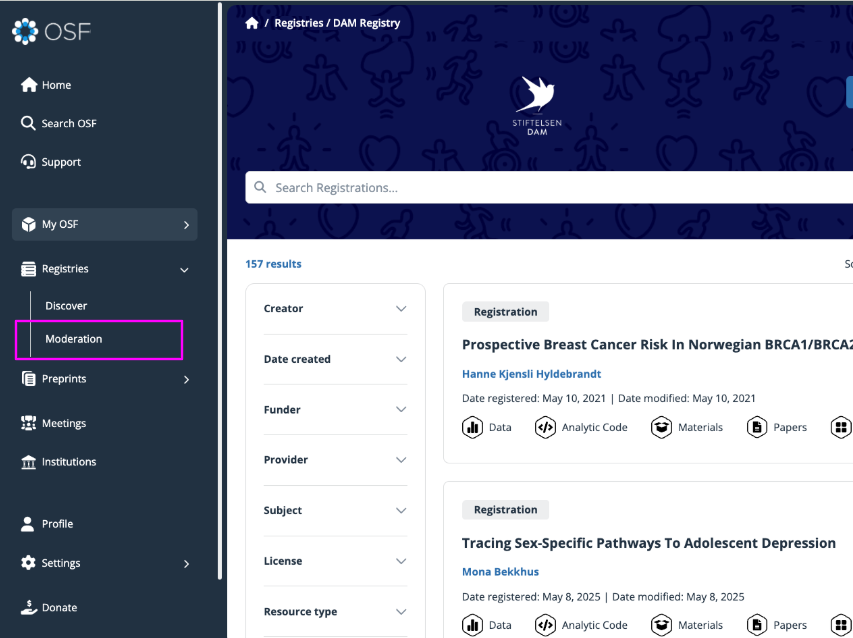
- The moderation dashboard will open.
Dashboard Features
The moderator dashboard is structured into four tabs: Submitted, Pending, Moderators, and Settings.
Submitted
The submitted tab includes moderated registrations. The registrations are grouped into 4 categories to make them easier to search:
Public – approved registrations that are publicly available and listed on the registry
Embargo – approved private registrations that are not listed on the registry until embargoed date has been reached.
Rejected – rejected registrations
Withdrawn – approved withdrawn registrations

Pending
The Pending tab includes registrations that are pending moderator approval. These registrations are grouped into 3 categories:
Pending – original pre-registrations or registrations that require approval
Pending Updates – registration updates that require approval. This option is only available if your registry allows updates.
Pending Withdrawal – withdrawal requests that require approval.

Moderators
The Moderators tab includes a list of current registry moderators and moderator settings. Available features in this tab depend on the moderator’s current permission level. Only Admins will be able to modify users on this tab, but all moderators will be able to view.

Settings
The settings tab is used by Admin users to adjust specific features of the registry. This feature is currently under construction.
Accept, Reject or Withdraw Registrations
When a registration is submitted for moderation, it is sent into the pending section of the moderator dashboard where the moderator can decide whether to approve or reject it. Approved registrations are disseminated into the public and embargoed sections accordingly. Approved withdrawal requests and forced withdrawals and listed in the Withdrawn tab. Rejected registrations are returned to the authors in draft form for further revisions and listed in the Rejected tab.
It is strongly encouraged that moderators comment on rejected registrations so that authors know why the registration was not accepted or what areas need revising. These comments are viewable by all users and cannot be removed or changed.
Accept or Reject Requests
Registrations, updates, and withdrawal requests will not appear on your moderator dashboard until all contributor admins are given the chance to reject, or allow auto-approval after 48 hours.
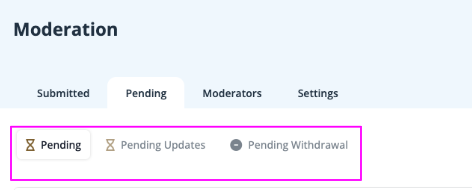
- Open the "Pending" tab
- Chose either Pending, Pending Updates, or Pending Withdrawals
- Pending shows new registrations submitted to the registry
- Pending Updates are existing registrations that have been updated. You can choose to accept the updated version or reject it.
-
Pending Withdrawals are requests to remove a registration from the registry.
-
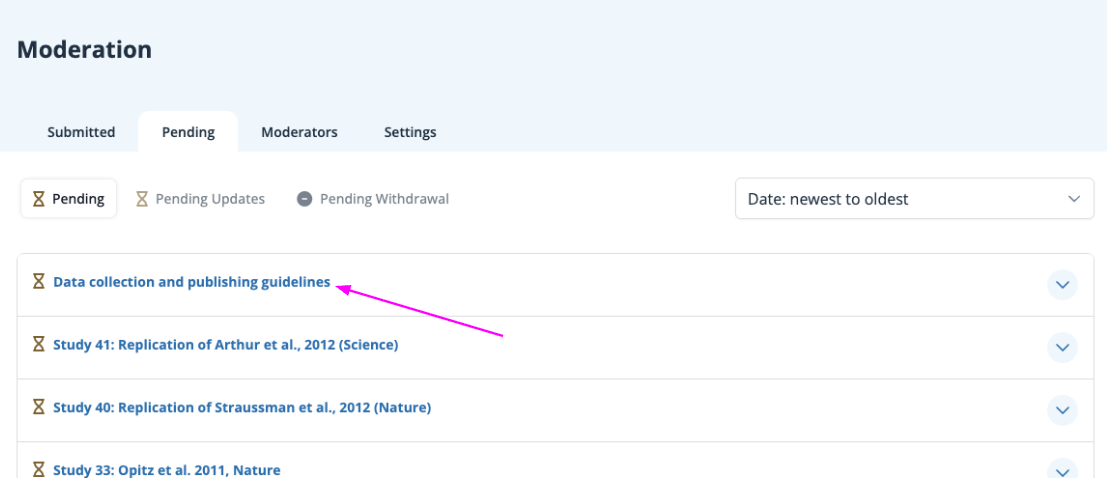
Open a pending registration or update by clicking on its title
-
The registration will open in a new tab. A green "Make decision" button will appear in the upper right corner. Click the button to open the decision pop-up.
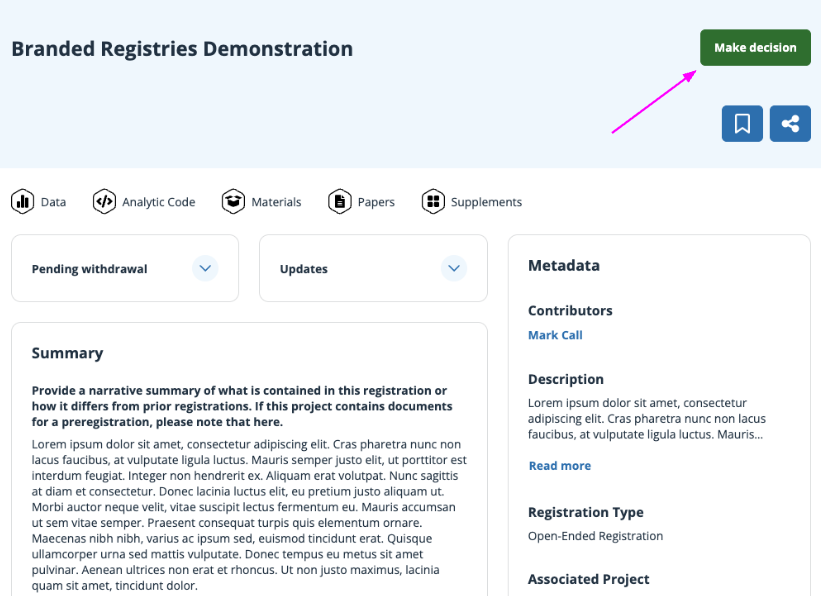
-
Select "Accept" or "Reject" the registration, update, or withdrawal. Add comments to the registration to alert the researcher to the reason for the decision and any steps to be taken to correct and resubmit.
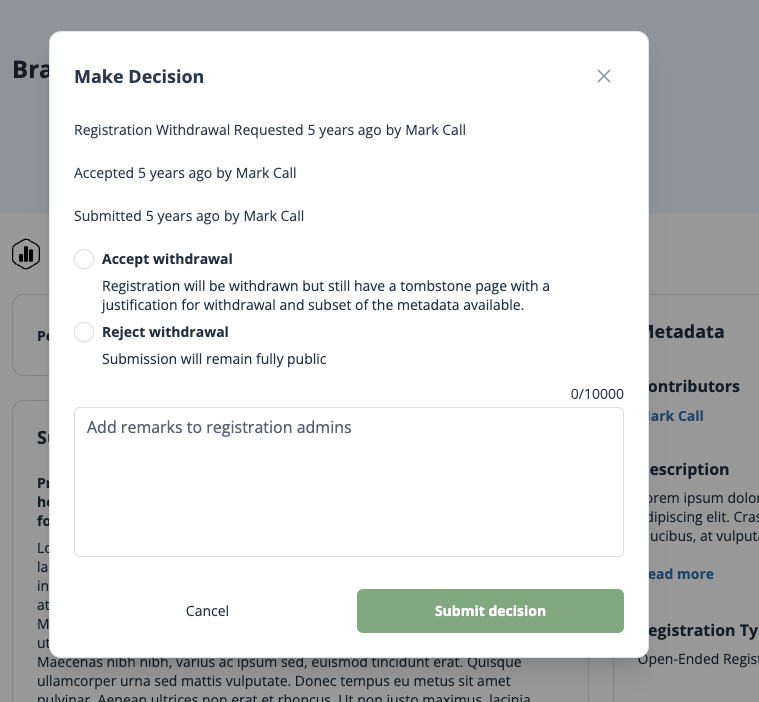
- Click "Submit" to submit the decision. Contributors will receive an email from OSF including moderator comments. The email will not disclose the identity of the moderator.
Forced Registration Withdrawal
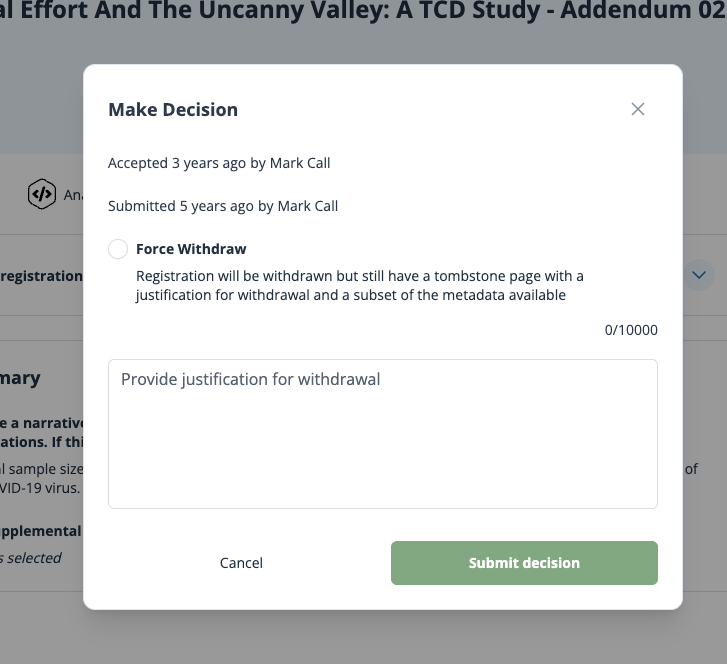
Moderators can forcibly withdraw a registration if it does not conform to the community’s service moderation policy. Force withdrawing a registration creates a tombstone page that will remain public and state the title, basic metadata, date of withdrawal, and your justification for withdrawal.

-
Start on the "submitted" tab on the dashboard and navigate to the registration you wish to withdraw in the Public list.
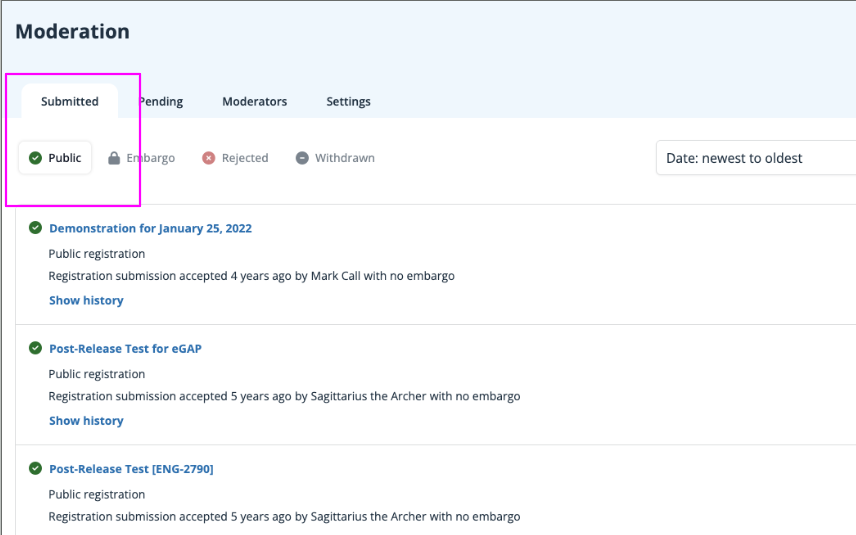
- Click on the title to open the registration as you do in the accept/reject workflow.
-
The registration will open with the same green "Make Decision" button that appeared during the initial moderator review.
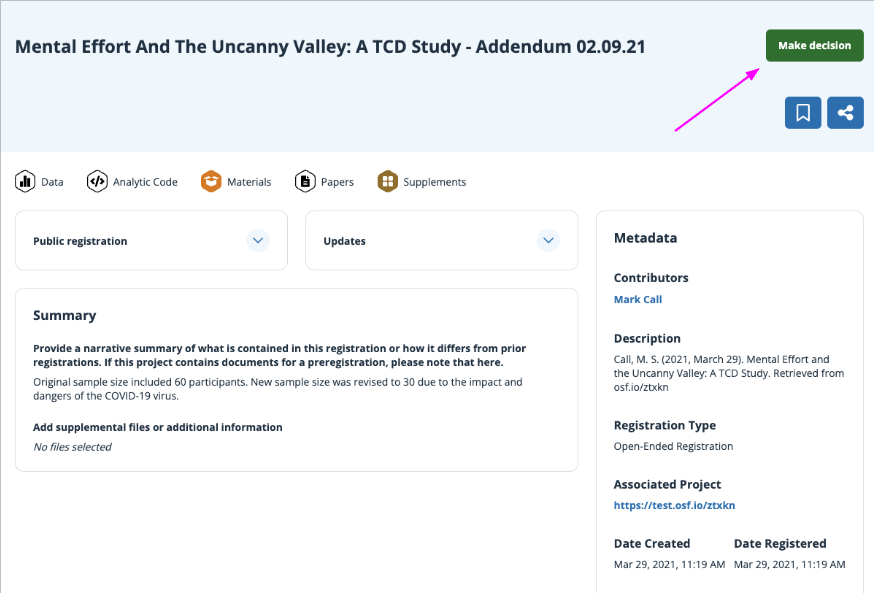
- Click the "Make Decision" button to open the moderation pop-up
-
The option now is to "Force Withdrawal." Enter the reason for the withdrawal in the text box. The justification will be retained in the public "tombstone" record for the registration that will be visible to anyone who tries to access the registration. The moderator will not be identified.
- Click submit to withdraw.
Moderators and Admins
There are two roles available for community members that maintain the registry's content.
| Moderator | A moderator has access to the registries moderation dashboard, and has the ability to view, accept, reject, and withdraw submitted registrations. Moderators can only remove themselves from the moderation team. |
| Administrator |
Along with the moderator features, Admins can also add or remove new moderators and modify their permissions (moving moderators to admins or vice versa). The first administrator for a registration service will be added by COS staff. |
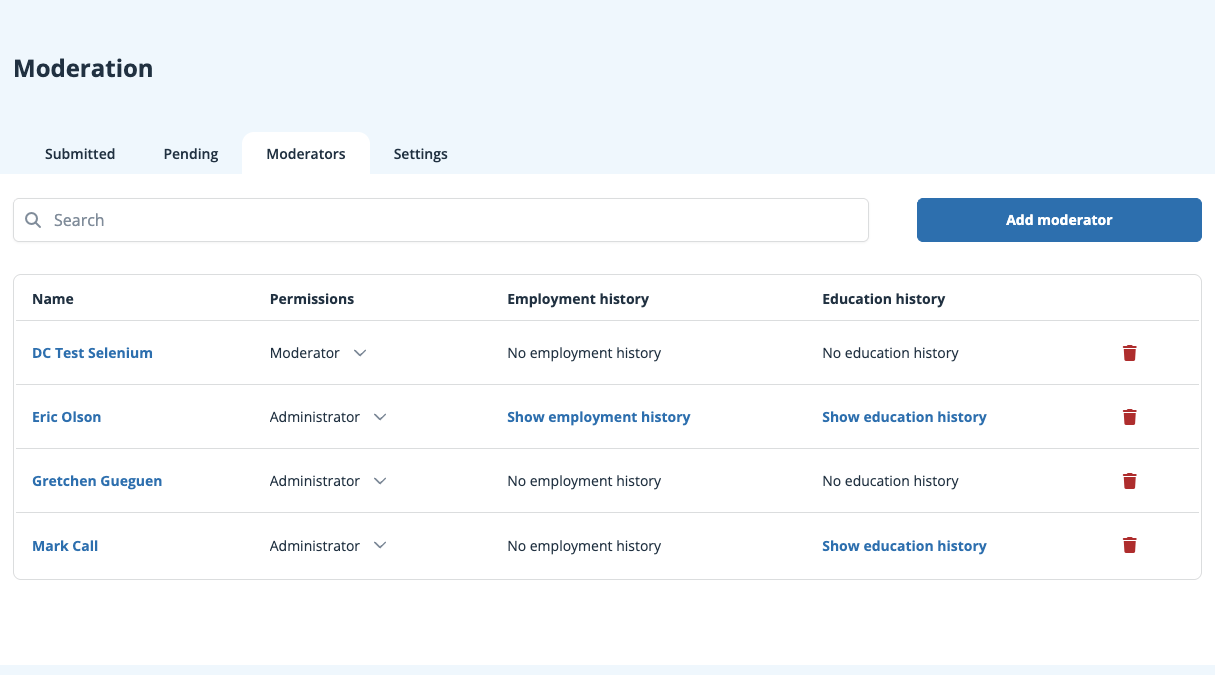
The Moderators tab includes a list of current registry moderators and moderator settings. Available features in this tab depend on the moderator’s current permission level. These are listed and illustrated in the table and image below. The Moderator Management section includes steps to add moderators to a registry.
| Admin | Moderator | |
| View list of moderators | ✓ | ✓ |
| Edit permission levels | ✓ | |
| Delete Admin / Moderator | ✓ | |
| Add Admin/ Moderator | ✓ | only themselves |
Add or remove moderators
-
Start on the "moderators" tab of your dashboard. If you are an admin of this registry, you will see a blue button in the upper right to add a new moderator. You will also see a red trash can icon next to each existing moderator's name. If you are only a moderator, you will only see the list of names.
-
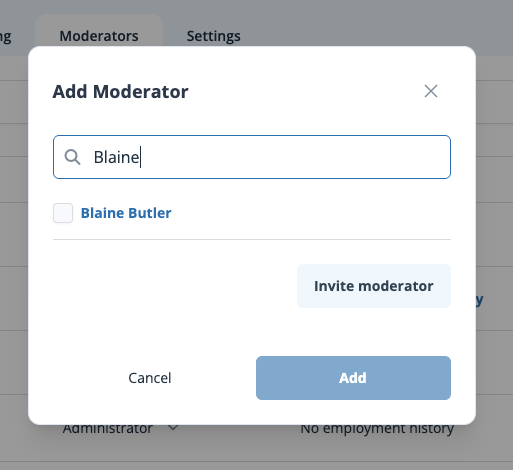
To add a moderator, click the "Add moderator" button and search for the moderator's name in the pop-up. If the new moderator already has an OSF account, you can select them from the results and click the "Add" button to add them to the registry.
-
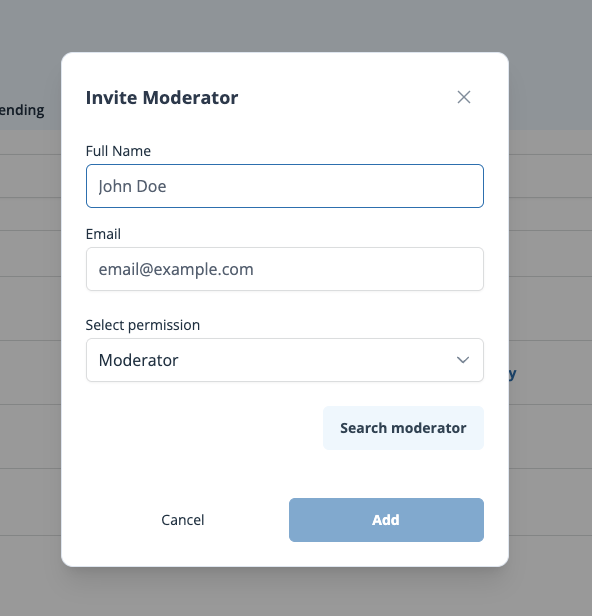
Click "invite moderator" to open a new pop-up asking for the name and email address of the person you want to invite as an admin or moderator. Click the "Add" button once you have filled in the necessary information.
- To remove an existing admin or moderator, click on the red trash can icon in the row with their name.
-
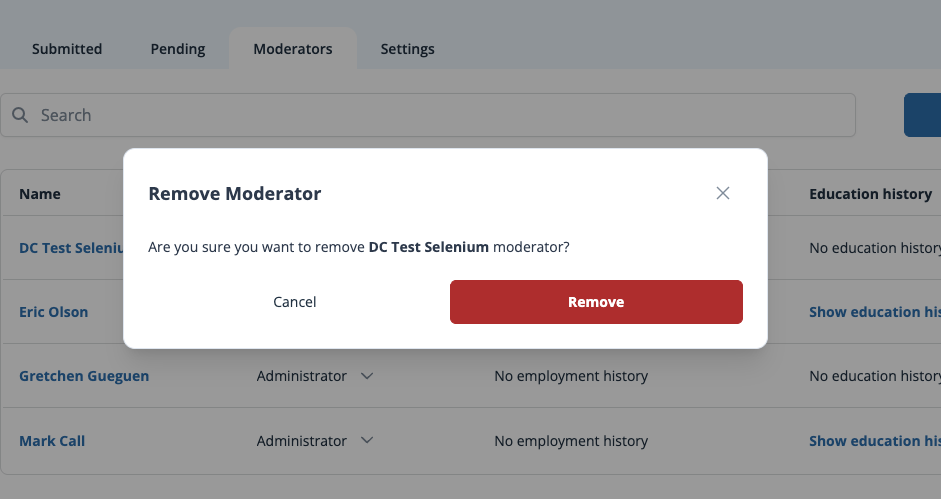
A pop-up will ask you to confirm this action before removing the moderator. They will be removed from the moderator list for this registry, but their OSF account will be otherwise unaffected.